xhorse-dolphin-xp005l-setting-01

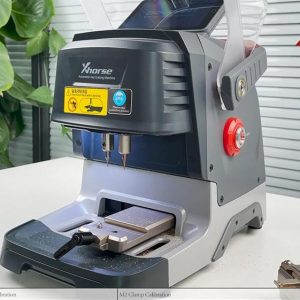
Xhorse Dolphin XP005L Cutting Setting, Clamp Calibration, Cutting Calibration

In this article, we learn how to complete setting instructions on Xhorse Dolphin XP-005L cutting machine. https://www.youtube.com/watch?v=nPN3MBDuQQs Step 1. Power on Xhorse Dolphin XP005L Power on Xhorse Dolphin XP005L, raise the tablet, lift up the protective cover. Step 2. Dolphin XP005L Cutting Setting. Select “System” -> Machine Parameter -> Cutting Setting (Spindle speed: Read More…
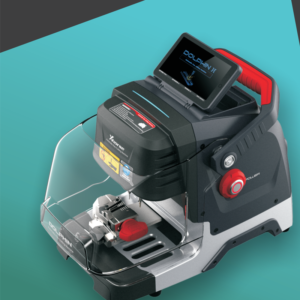
xp005l

Dolphin XP005L Dolphin II Universal Duplication

Dolphin XP005L Dolphin II Universal Duplication 1) Click on “Universal Duplication”. 2) Take the track external key as an example, click on “4 Track external” to enter the corresponding interface. 3) Choose the right alignment and clamp surface. 4) Click on “Learn Key” to start and there will be a corresponding pop-up prompt after finished. 5) The “Cut Key* button will be cRead More…

010

How to use cut by code for Dolphin XP005L Dolphin II

How to use cut by code for Dolphin XP005L Dolphin II? 2 ways of using the key code to make a key: Method 1: Making a key without the original key: Use some special tool to get the key code. 1) Click on “Cut By Code” 2) Select or input a key blank type. 3) Select the keylype. 4) Fix the key according to the picture show, select proper side of damp and fix the key in corrRead More…

xp005l

Xhorse Dolphin XP005L Dolphin II Cutting Calibration

Xhorse Dolphin XP005L Dolphin II Cutting Calibration 1) Click on “System” on the operation main interface. 2) Click on “Machine Parameter”. 3) Click on “Cutting Calibration”. 4) Please select the diameter of the milling cutter that you installed. 5) Operate by following the tips and click on “Start”. *Do not use the key HON66 that has cutted, you must use a brand Read More…

010

How To Use Your Smart Pphone APP To Connect Xhorse Dolphin XP005L Dolphin II?

1. Users can download Xhorse APP in the App Store to obtain it, or directly scan the QR code as shown below. 2. Power the machine and turn it on, open Xhorse APP, switch to the CNC machine interface, click on “Switch Device” and select Dlophin II. 3. Click on “Select” and turn on Bluetooth, click the SN of the device to connect to the machine (Users can set up the automatic connection function aRead More…