
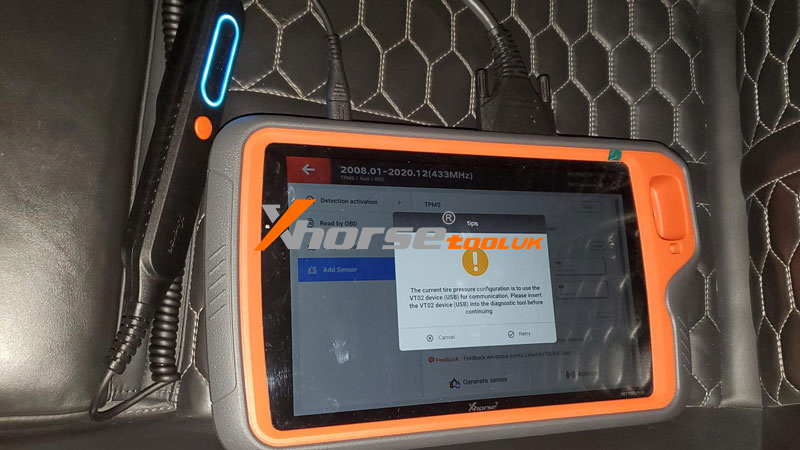
If you’re using the Xhorse VVDI Key Tool Plus with a TPMS adapter from the Key Tool MIDI and encounter the message:
“The current tire pressure configuration is to use the VT02 device(USB) for communication. Please insert the VT02 device(USB) into the diagnostic tool before continuing.”
Don’t worry – this is a common configuration issue that can be resolved quickly. Here’s what the message means and how to fix it.
Understanding the Error
The system is expecting a VT02-series TPMS device to be connected via USB, but it’s not detecting one. This often happens when the software is set to communicate through VT02 hardware, but the adapter isn’t recognized, or the settings aren’t configured correctly.
Step-by-Step Solution
1. Log in to Your Xhorse Account
Ensure you’re signed in to your Xhorse account through the diagnostic tool to access all features and settings.
2. Select the Correct TPMS Device
Navigate through the menu:
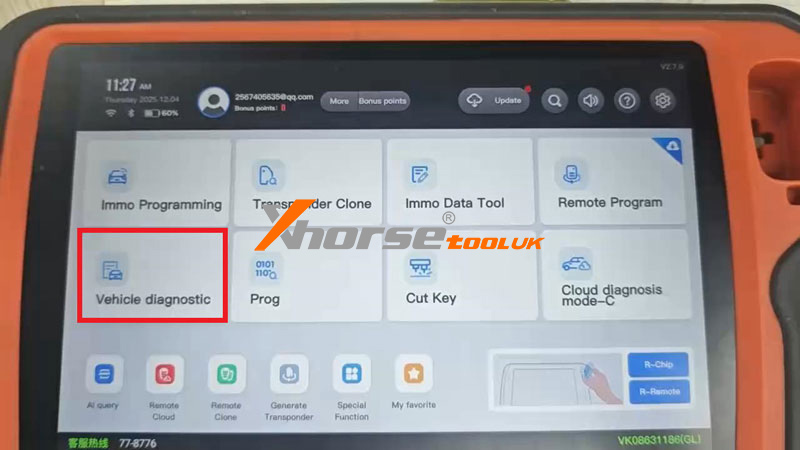
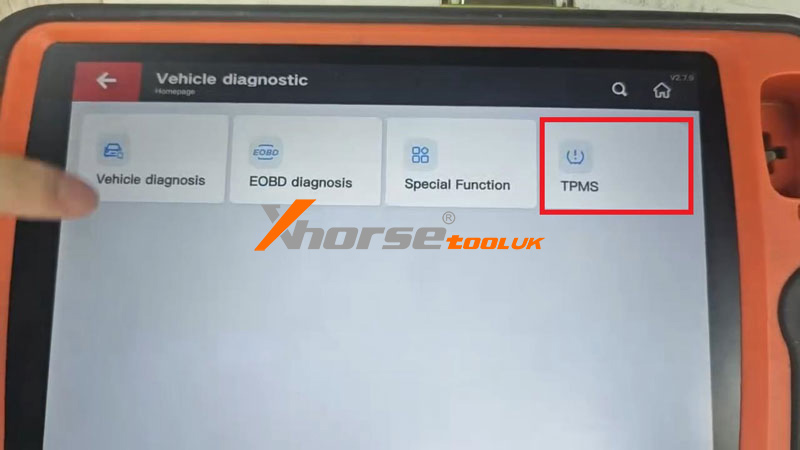
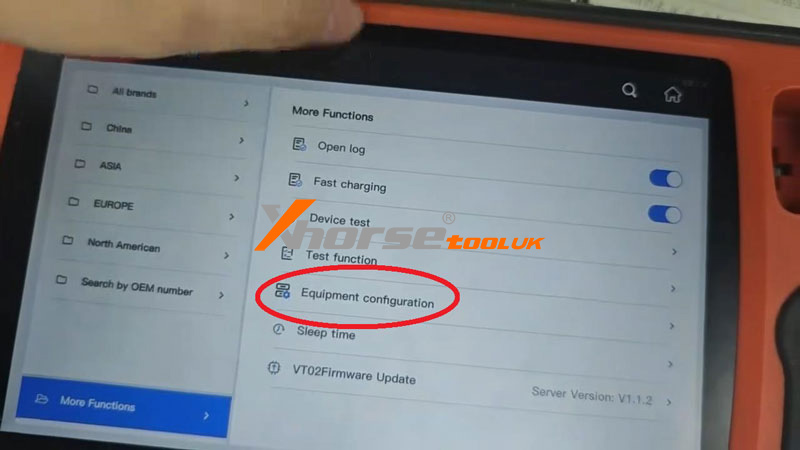
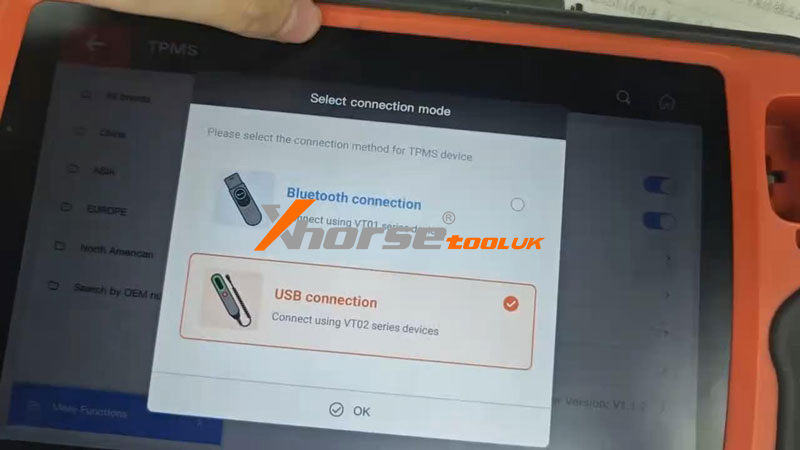
Vehicle Diagnostic → TPMS → More Functions → Equipment Configuration → USB Connection (connect using VT02 series devices)
3. Check USB Preferences
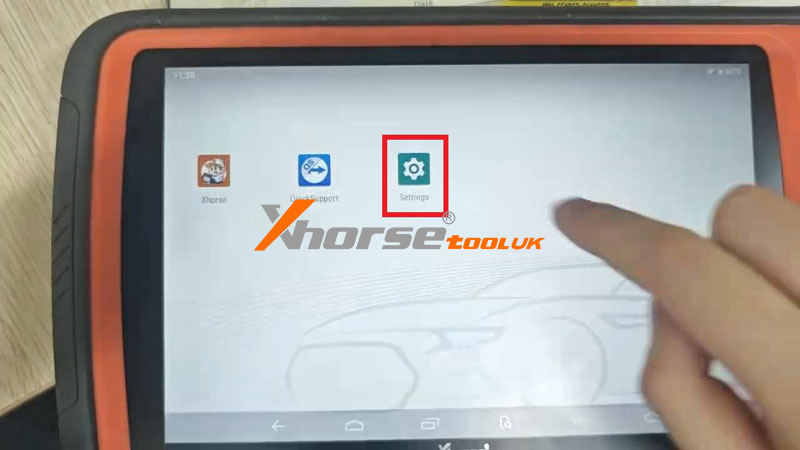
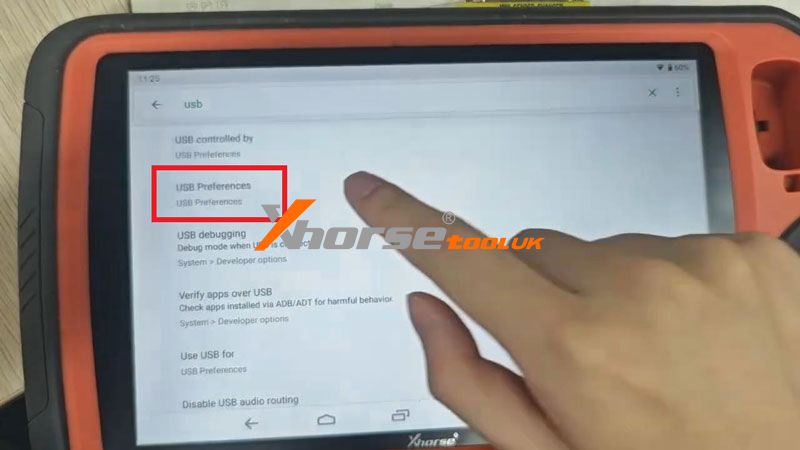
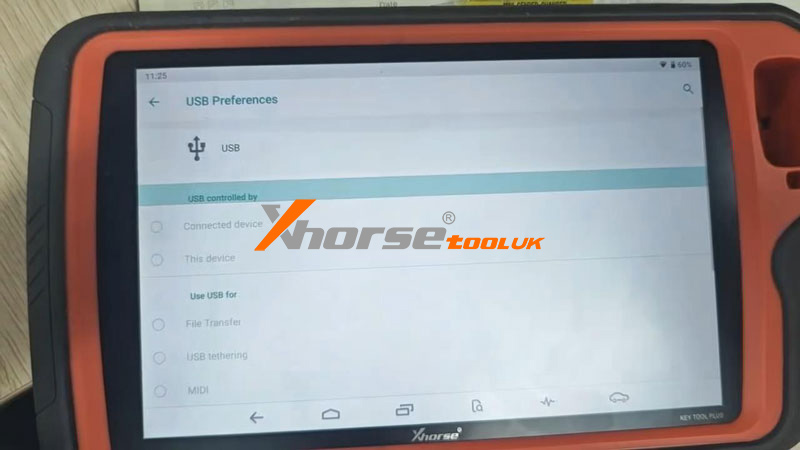
Go to: Settings → USB Preferences
Make sure that the USB is controlled by the connected device.
Why This Works
This adjustment tells the VVDI Key Tool Plus to use the connected VT02-compatible TPMS adapter for communication, resolving the mismatch between the software configuration and the hardware in use.
Final Tips
Always keep your diagnostic tool and software updated.
Ensure USB cables and adapters are firmly connected.
Reboot the tool if the issue persists after configuration changes.
By following these steps, you’ll be back to performing quick and accurate TPMS services in no time.